


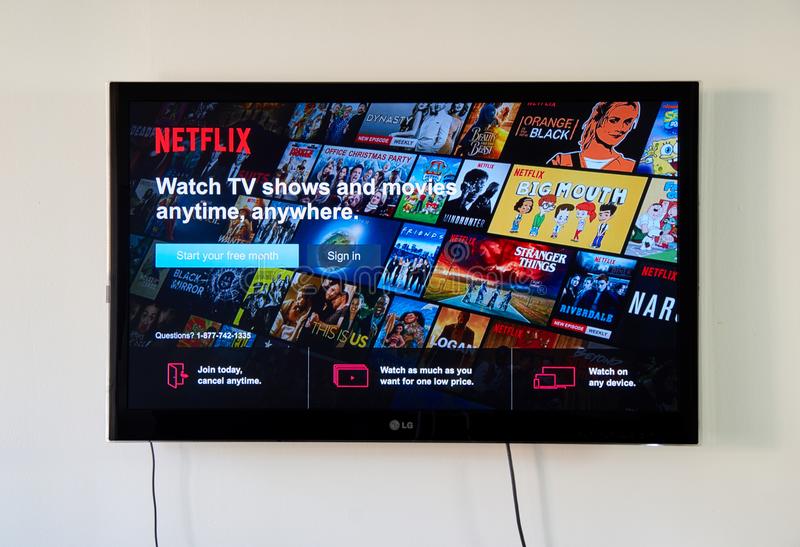
Increasing demand for 4K TVs is also bringing a lot of 4K content among users. YouTube has been here for a long time, but it lacks the quality content and programming of everyday TV series. Netflix, the world’s leading streaming service, has a large library of TV series, originals, movies, and more. They also have a wealth of exclusive content and classics. Most smart TVs today come with Netflix pre-installed. Some models also include a remote control with a special Netflix button for easy access. All you have to do is put Netflix on your TV and start streaming. Netflix also has a free trial period that you can use for testing. Here’s a step-by-step guide on how to get Netflix to work on your TV.
Are you already a Netflix user?
Step 1: Start by connecting your TV to the internet.
Note: If the app is not pre-installed, go to your TV’s app store, search for Netflix and install it.
Step 2: Launch the Netflix app. (If your TV remote has a special Netflix button, press it.) Click Login and enter your credentials. You can now start using Netflix on your TV.
New to Netflix?
If you’re not already using Netflix, follow these steps to get Netflix working on your TV.
- Connect your TV to the internet and launch the Netflix application.
- Click the Start Free Month button. The next screen contains the rules for a free monthly subscription. Click “Continue”.
- Check your plan: Basic, Standard, and Premium. Select the one that best suits you and click on “Next””. Details of each plan must be listed here and are also available on the Netflix website.
- The screen will ask you to create a Netflix account. Click the “Continue” button.
- To get started, enter your mobile number and continue creating your Netflix account.
- You will receive an SMS with a link on your mobile phone. Open it in your browser and click Continue to continue.
- Enter your email ID and password and click Continue. If you want to continue Netflix after the trial period, you need to set up payment.
- Enter your credit or debit card details, click the I Agree box, then click the Start Membership button.
You can now start streaming Netflix content on your TV.
Look at Netflix on a smart TV with Chrome cast
You can use Netflix on your Chromecast to watch Netflix shows on TVs other than smart TVs. Before you can set up Netflix on your Chrome cast, you must first install and configure the Google Home app on your mobile device.
- Connect your Chrome cast.
- Download the Google Home app.
- You use with your Chrome cast device.
- Open the Google Home app and set Chrome cast as your new device.
- Set up Netflix on Chrome cast
- Once you’ve set up your Chrome cast, you can start streaming Netflix to your TV.
- Start the Netflix application on your device and log in.
- Select the icon in the top left or bottom of the page.
- Select Chrome cast from the list of devices available to start the Netflix application on your TV.
- Select the TV show or movie you want to watch and press Play.
Watch Netflix on non-smart TVs using Amazon Fire Stick
- Accessing Netflix through your Amazon Fire Stick device is another way to watch Netflix shows on non-smart TVs.
- To connect your Amazon TV Fire device to your Netflix account, make sure you are on the home screen and follow these steps:
- Select Search on the main screen.
- Enter Netflix in the search box and select Netflix. Choose free or download.
- Select Open when the download is complete.
- You will get an activation code on your screen.
- Go to netflix.com/activate on your internet browser.
- Enter the code, Click Continue.
- Select Log in and log in with your Netflix account information.
- Signing in makes things really easy.
The Netflix main screen has five menus: Home, Series, Movies, Recently Added, and My List. These menus are further subdivided into current trends, Netflix originals, Action & Adventure, and more. You can also create your own playlists for your content to see the details. You can easily sync your added content with other devices so you can continue to watch it on your phone, tablet, or even laptop when you’re not at home.
Final Thoughts
Don’t worry if your TV doesn’t have Netflix. You can still see it. There are several alternatives that allow you to stream Netflix on your TV, such as Google Chrome cast and Amazon Fire TV Stick 4K. They are portable, affordable, and very easy to set up. If you want to know how these devices work, please visit your local Reliance Digital store and request a demo. Now you can also buy it online through our website.